
Medit Link
New case detected, practitioner comment read.
Windows software for dental laboratories
AutoLabFlow monitors your digital workflows, retrieves available files and organizes them in your local structure. Your team saves time without changing its production tools.
Designed for mornings when cases are already arriving from everywhere: the goal is simple, make the workflow easier to read before production starts.
Do you use Medit Link or DS Core? See how to centralize reception without changing tools.
Active monitoring of connected workflows
Illustrative preview — no real data displayed
Practical in the lab
AutoLabFlow is not designed to replace the laboratory’s existing habits. It makes incoming cases, retrieved files and items to review visible, so everyone knows where to look.
The software should stay unobtrusive enough to run all day, yet precise enough to prevent missed cases, duplicate downloads and misplaced folders.
New case detected, practitioner comment read.
Scans and documents filed in the practitioner folder.
Missing occlusion: the case remains visible before production.
The action remains available in the Activity tab.
The problem
When digital impressions arrive from several platforms, your technicians still have to monitor, download, rename and file the data before production can even begin.
New cases and their attachments are spread across several spaces.
Each manual retrieval interrupts a higher-value task.
An inconsistent name or folder makes tracking and preparing the case more difficult.
A missing file or overlooked case can slow down the entire workflow.
The solution
AutoLabFlow automates repetitive steps while leaving operational decisions to your team.
The software identifies new cases available in the workflows configured for your laboratory.
See detectionRelevant files are downloaded according to each source’s permissions and technical capabilities.
See retrievalReceived items are organized in your local folders using rules defined with you.
See filingReal preview
A short video to show the interface and main menus without turning this page into a full demonstration. Its purpose is to give a concrete view of the software while preserving the necessary confidentiality around real data.
The video presents the overall AutoLabFlow organization: navigation, activity, errors and reception workflow tracking.
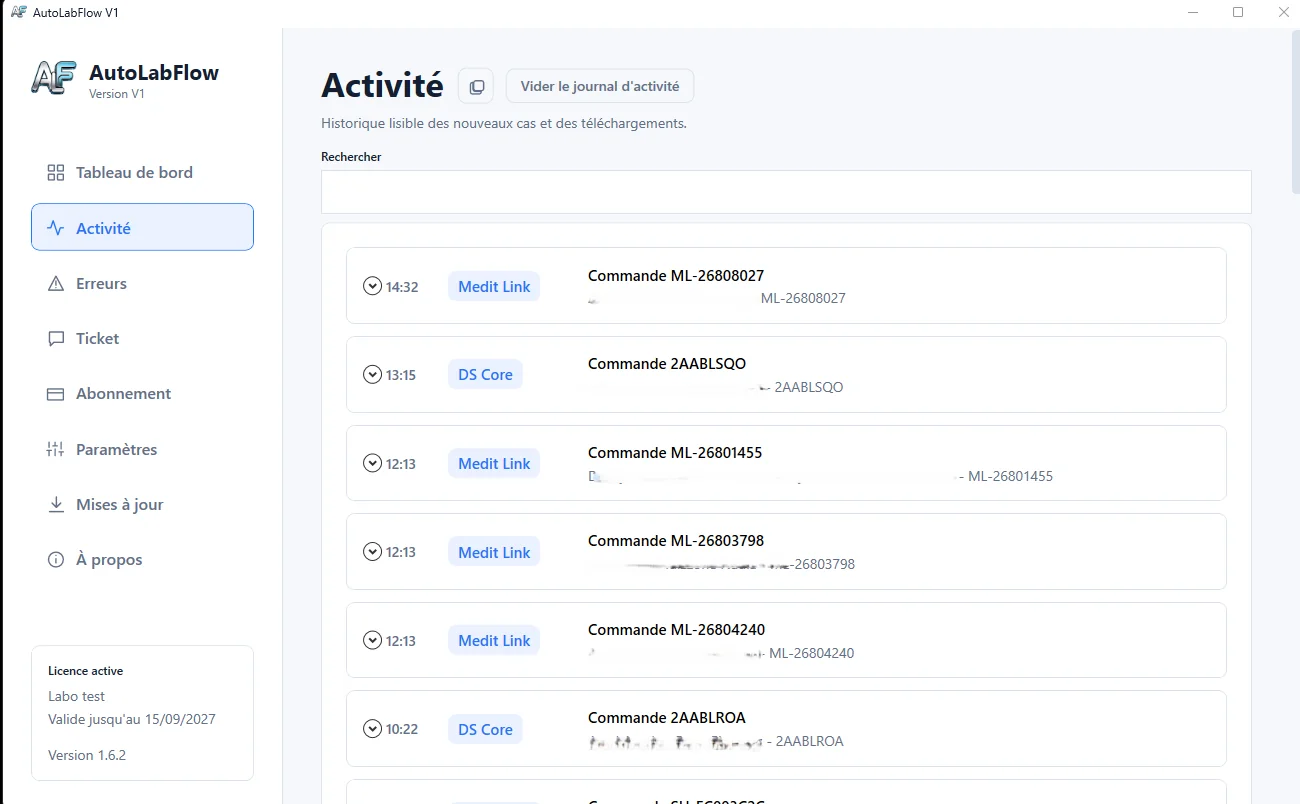
The log makes new cases, downloads and actions completed during the day easy to follow.
Some information has been deliberately blurred to protect the confidentiality of our pilot laboratories and patients’ identities.
Software interface
The dashboard brings together connections, the destination folder, received cases and any errors. Your team can find useful information without juggling multiple screens.
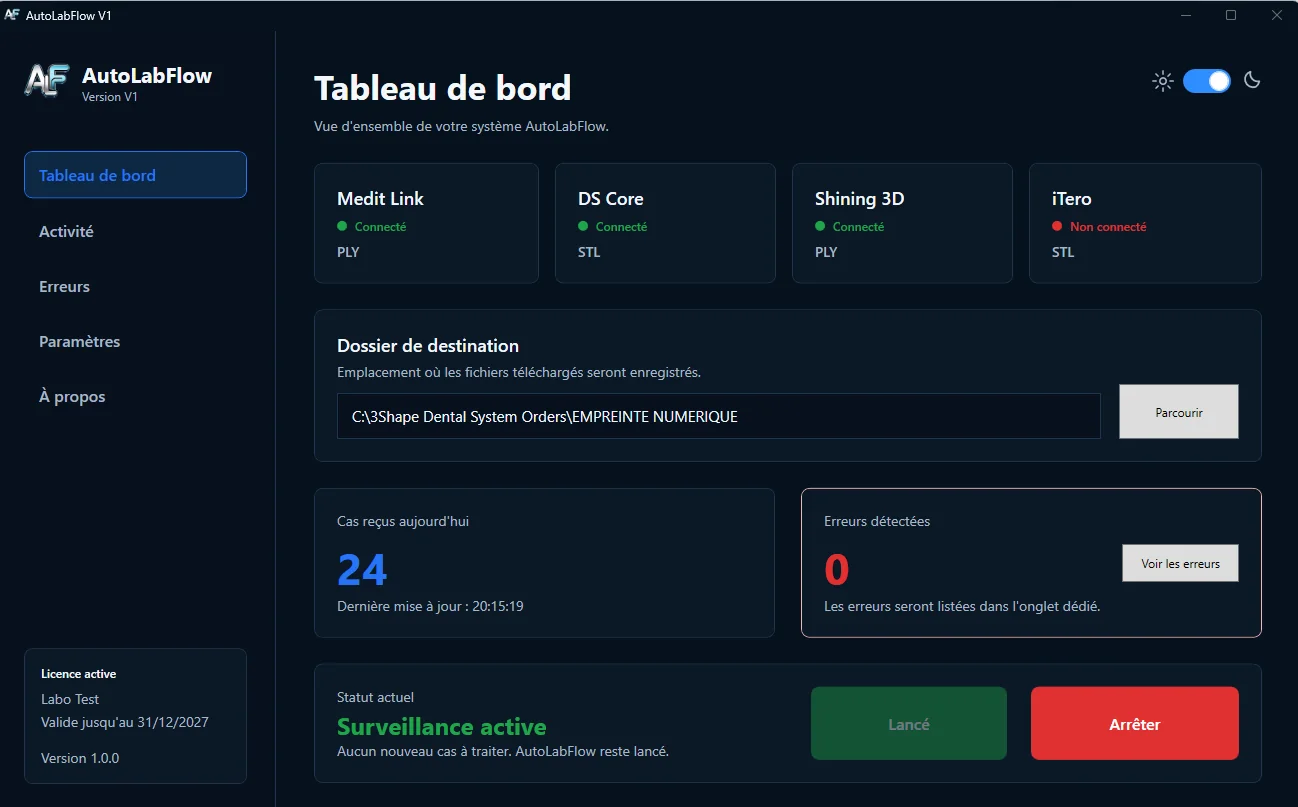
A comfortable interface for production workstations and low-light environments.
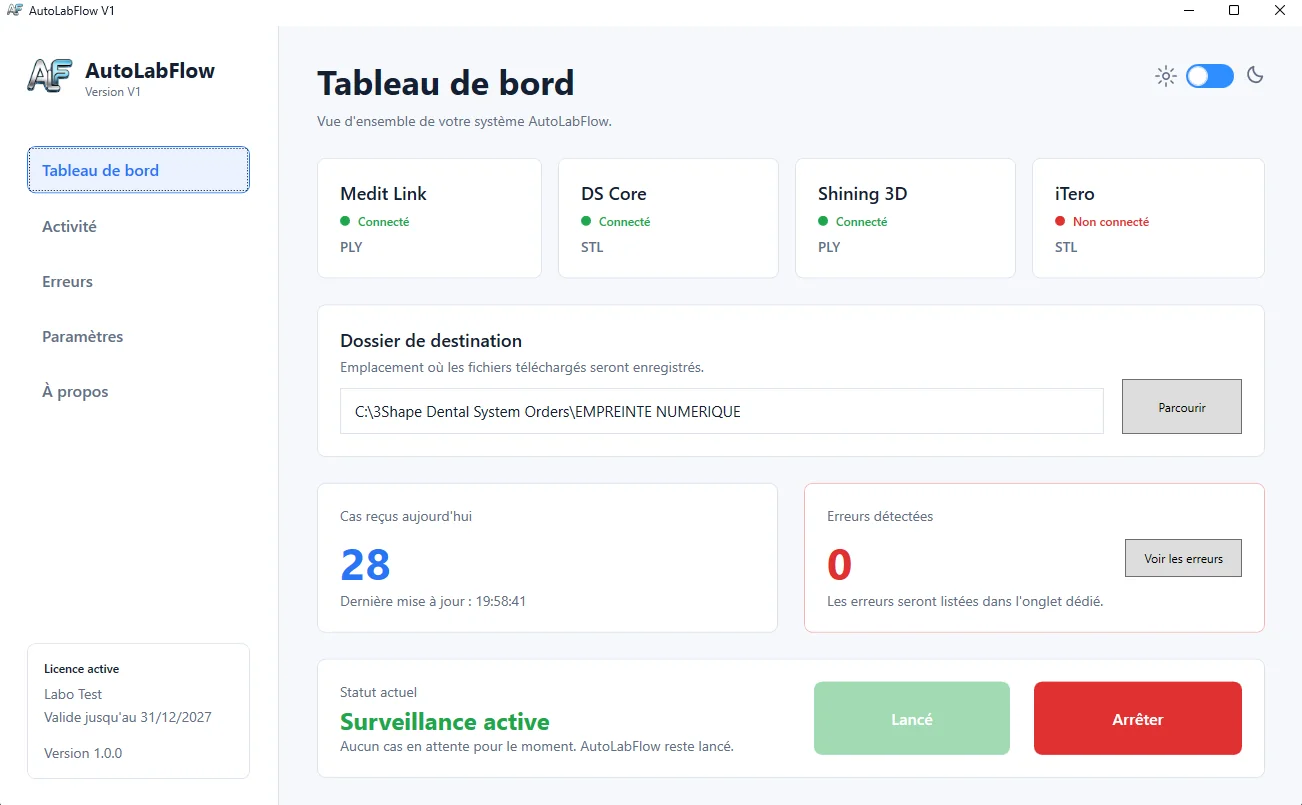
The same clear tracking with an appearance suited to bright workspaces.
AutoLabFlow V1 interface screenshots. The display and available features may evolve.
Local-first
AutoLabFlow is designed for Windows and integrates with the laboratory’s local or network organization. It does not replace your production software, CAD tools or ERP.
Workflow
Configuration starts from the way you actually work, not from an imposed generic process.
We identify your sources, volumes and friction points.
We verify available access and the scope that can be automated.
Download and filing rules are adapted to your needs.
Your team validates the result and retains control of the workflow.
Frequently asked questions
No. AutoLabFlow acts as an automation layer between digital case sources and your local folders. Your CAD, production and management tools remain in place.
The scope depends on the technical access and APIs available for each platform. We verify your tools before making a proposal so we only promise what can genuinely be deployed.
The software follows a local-first approach: files are organized on the laboratory workstation or network, according to the agreed configuration.
Yes. Ambiguous or incomplete cases can be flagged for review, and the rules remain configurable to match your way of working.
No. It helps us understand your workflow, verify the relevant scope and show you the AutoLabFlow approach.
Go further
A few reference points to understand where AutoLabFlow fits into the day-to-day work of a dental laboratory: choosing software, automating workflows, receiving cases and organizing digital impressions.
Demonstration
Simply describe your laboratory and platforms. We will prepare a presentation focused on your real constraints.